Saturday, May 21, 2011

HTC EVO 3D and View 4G Preorders Are Go!


Are you looking for your next Sprint upgrade? Just have an affinity for 3D screens? Or do you love HTC so much you need their tablet? Good news then. Sprint is now officially accepting pre-orders for both the HTC EVO 3D and the HTC Flier 4G. Strangely, RadioShack and Target Mobile beat them to the punch on the EVO 3D preorders, but all three places will take just $50 of your pocket money for the guarantee of getting a device on Day One. Problem is, no one knows when Day One for either device is. Or how much they will actually cost come Day One. But no matter when and for how much, you'll get one that day, and the $50 is put towards the purchase price.

To recap, the HTC EVO 3D is the US' first 3D phone, with a 4.3" qHD screen similar to the 3DS. No glasses required. You also have a 1.2GHz dual-core processor to help handle the dual 5 megapixel cameras on the back for 3D pictures and video. It will run HTC's newest version of Sense on top of Android 2.3. The Flyer is HTC's first tablet, rocking a 7" screen and Android. What sets this one apart is that you can also buy a special stylus for input, making it very easy to draw and write notes.

So who's getting one?

Review: Google Music Beta

Google's cloud-based music service was announced at this year's I/O conference to much fanfare and no surprise. While rumors of a music store had been rampant for quite some time, that wasn't quite what we got. Yet. But enough talk about what is not present, here's a quick sneak peak into Google Music Beta!

Before I get into this review, I'd like to make 2 disclaimers. The first and most important is that this entire service is Beta. There are imperfections that will no doubt be addressed. The second is that this is really 2 sneak peaks: One for the webapp and uploader, one for the Android app. Now, the good stuff.


First up is the meat and potatoes: The web interface and uploader. The uploading is incredibly easy. After a quick download and install, the Music Manager will scan your computer for the music. To avoid getting the random sound effects on your computer, you can have it scan through iTunes, Windows Media Player, or specific folders. Everything is done in the background, so you don't need to pay attention to it at all. You can also have it automatically run upon start up, keeping this truly out of sight and out of mind. The average library has a lot of music, mine being about 19.5Gb of tunes. At the time of this writing, I'm at 387 track uploaded after a few hours in, so completing this task will take a long time. The good news is Google promises each user 20,000 songs. My 19.5Gb accounts for roughly 4,000 tracks. The one issue I have is that I use iTunes, which means I don't really keep track of what the files are actually named. Since many tracks have numbers in front, and as far as I can tell the Music Manager uploads in alphabetical order, some albums can't be listened to in full.


The web app will look very familiar if you've used the web version of the Android Market. Everything is very tab-centric, making it incredibly easy to use. On the left side, you have the traditional ways of sorting through your library (Songs, Artists, Albums, Genres). Under that you get to the mixes and playlists. The auto-playlists sort out the songs you've Thumbs Up'd, your recently added stuff, and the free music Google is giving out. There's not a lot of it, and it's mostly a song or two per artist, but it's nice to get free stuff.

There are two kinds of playlists. You have your traditional playlists that you custom make by drag-and-dropping songs. The Music Manager also pulls your playlists from iTunes, which is very cool. You can also create Instant Mixes (a la Genius Mixes from iTunes) from individual songs or albums, adding in similar jams. Along the bottom is the Now Playing bar with the familiar Play/Pause, track navigation, Shuffle, Repeat, and Volume controls. I think the Now Playing bar could be a bit thinner. The width of it and the banners at the top make the song and album lists seem a little cramped. While the overall look isn't as visually impressive as the Zune player, it looks a lot better than iTunes but still has the information that iTunes has. Overall it's a very easy to use service while still looking very nice.


Now the dessert. The Android app is very basic, almost to a fault. First thing's first, it works pretty well. It decided to scare me by force closing the first time I tried to play a song, but every time after it worked well. Songs take very little time to load up on WiFi, though it does take a little bit longer on 3G. Swiping left and right switches through album, artist, etc. views. When on the now playing screen, you see the album cover, Play/Pause, song and artist name. One cool thing is being able to make custom playlists in the Now Playing screen, though it would make more sense to be able to make Instant Mixes from this screen. Maybe we'll get that later. You can also download songs or albums from the Library view and Now Playing screen.

The main problem with the app is a visual one. It's just boring. Like really boring. You're given a blurry, boring background picture. There's no animation between screens, nothing. It's just blah. It would have made a lot more sense to keep the color scheme and overall feel of the web app, while tweaking it a bit for smaller screens. The other small problem is that the name of the app is Music. So is the stock music app for Android. While the icons are different, this can be a bit confusing. They should made it Google Music for differentiation.

The biggest problem facing Google Music is the complete lack of a store. Google Music, as it is now, is just cloud storage and streaming. What's weird is that in both the web and Android app, you can "shop for artist", but it just does a Google Shopping search for that artist where you can buy the songs from somewhere else. This may work for now, but it isn't a longterm solution when Amazon is offering very similar services. Google is trying to get the labels to get on board in some fashion, but how long it will take and in what form we'll get the music remains to be seen. I'm hoping for a subscription service, and knowing how Google does things (and a fair amount of rumors supporting this theory), it's very likely that that is what we'll get.

Overall, Google Music is the best solution to having too much music to fit on your phone. While I'm also a big fan of subscription services like Rdio, they just don't have everything I listen to. Amazon's cloud storage is good, but it lacks a well done web player and uploading your stuff is obnoxious. Google nailed the upload and web version for sure. Once they lock in the record deals and make the Android app visually appealing, Google Music may just be the best music solution yet.

Want some Google Music action of your own? Click here to apply for an invite!

Thursday, May 19, 2011

Re-Securing Your Passwords


So, a lots happened since I've been gone. Been a crazy time personally and online. The biggest news since last I wrote has been the massive amounts of security breaches. From Epsilon leaking out our email addresses to Sony's Playstation Network disaster, our online logins and passwords have been in the hands of God knows who. But do you really want to trust that some neckbeard in a dark basement to not start buying stuff on Amazon? I don't.

The main problem that people have is using the same password across all of their services. In the past, this was never a big deal. But now, our online identity is so tied in to our daily lives that we can't regard all of our accounts to be on the same level of importance. My solution: The Three Tiered Password System.

Make a list of my most visited sites. Then asked yourself how important each one is. Not sure? Think about how pissed you'd be if someone else got access to that account. My list involved your basics, Facebook, Twitter, Amazon, Netflix, eBay, Gmail, banking sites, etc. I broke that list into 3 tiers.

Tier 1 consists of non-important things like Hulu, Netflix, forums, and then accounts for apps like Words With Friends. I used my traditional basic password. It's not the most secure, but on this tier, even if my password is guessed, all someone could do is change my Instant Queue and waste a Triple Word Score. This password is memorable and easy to type in.

Tier 2 consists of my social networks mostly and a few other sites that are important, but wouldn't be devastating if someone got into them. That said, I don't want someone breaking into my Facebook and posting obscene things (at least not worse than normal), so I made this password a tad more difficult, but not so difficult that it's a pain to type in every time I want to log in. I suggest adding in numbers along with letters.

Tier 3 is the important stuff. For the most part, it includes things that have your credit card info. Tier 3 should include Amazon, eBay, and your banking sites, but also things that you use on very personal and professional levels, like email addresses. You definitely don't want someone to have access to private emails to friends, family, and professional contacts. For this password, make sure it consists of capital and lower cased letters, numbers, and even symbols. Don't use numbers that are easily associated with you, like your birthday, address, etc.

Now obviously you can use super secure passwords for each tier as well, just make sure you can remember all your new passwords. If you're like me and you've been using the same password across almost all of your services for some time, you may want to have access to those passwords while you're working on memorizing them. The best way: A small piece of paper. While walking around with your passwords isn't the best idea, having them written down in a safe place is the only way to ensure that no online scumbag can get their hands on them. Also, don't hesitate to change your passwords every so often, especially when you hear that one of your services have had their data compromised.

Stay tuned for more stuff, because Tech Made Relevant is BACK!

Friday, April 1, 2011

A Confession and an Announcement


Today, I am announcing a big change to Tech Made Relevant. But first, I'm going to bare my soul a little bit.

Technology has always been a great hobby for me. Playing with the latest gadgets and having those "Holy crap this is the future!" moments have gotten me really excited.

But a hobby is just a hobby. Things like model car construction and toe jam collections and such as are fun, but they wont get you places. You have to have passion. So my confession is this:

My passion is fashion.

The announcement is that I'm taking my talents to the fast paced fashion world. Tech Made Relevant will go the way of the caterpillar, after a short stasis, it emerges as a beautiful butterfly. Tech Made Relevant is now Tiaras Made Relevant.

We'll now be covering everything chic, talking up fashions major players, and dishing on its biggest losers.

From concealer to corsets, from red carpet to Ralph Lauren, from New York to New Delhi, you'll find it all here.

Expect a site redesign (inspired by Coach!) and even the Paul Mitchell Pretty Podcast!

XOXO
Travis

Sunday, March 20, 2011

Bombshell: AT&T to Buy T-Mobile *UPDATED*


While talks of someone buying T-Mobile is nothing new, there's been a lot of rumors that it might be Sprint doing it the last few weeks. Deutsche Telekom, T-Mobile's parent company, has been losing money on T-Mobile for years and has been looking to get rid of it to focus on their European branches.

AT&T just announced that they have agreed to buy T-Mobile to the tune of $39 billion, $25 billion of that cash, the rest stock options. AT&T says it will be using T-Mobile's existing network to bolster the famously precarious (in certain locations) AT&T network, and will use T-Mobile assets to push it's 4G initiative to an additional 46.5 million Americans over the next few years.

Assuming they get the green-light from the government, the acquisition will take around a year. After that time, AT&T will become the only GSM carrier on a national level (some rural carriers still use it), giving them around 130 million subscribers nationwide. This will make them the largest US carrier, passing Verizon's 102 million (as per the final quarter of 2010).

A $39 billion acquisition that will bring the major wireless competition down to just 3 carriers will have a very hard time going through the Department of Justice and FCC, most likely though. We're in for a very long road ahead on this one. AT&T will be hosting a conference call on this tomorrow, so keep checking back here to find out more information.

If the buy out goes through, what will this mean? T-Mobile subscribers will eventually become AT&T customers in most areas throughout the country. Often times, 3rd parties gain some small areas, like how AT&T gained some Alltel customers when they were purchased by Verizon a few years ago. WHen the dust settles, there will be a lot less competition. Even though they were a small company who wasn't making money, T-Mobile helped keep the monthly price of wireless plans down. With Sprint being the only company that doesn't have the mass that Big Red and Ma Bell have, you can expect costs to go up. Someone's got to pay that $39 billion bill, right? You can check out the full press release yourself right here.

UPDATE: Got my hands on the T-Mobile press release. Looks like T-Mobile will be working to keep as much T-MObile staff as possible, which is good news, and confirms the estimated 1 year timeline for the transition. T-Mobile claims that this will reduce Deutshce Telekom's debt by about 31%.

A lot of people are asking what this will mean for T-Mobile customers. While there haven't been any specifics on the transfer of contracts or anything of that nature, here's what you can expect to happen (based on previous buyouts):

- Your contract will not be cancelled. When one carrier buys another, they also buy these contracts and are required to honor them. This means you'll keep your phone, number, and plan as is. Should they decide to not honor T-Mobile's plans, it will a breach of contract on their part, meaning you can leave without penalty. However, when you become eligible for an upgrade, they are not required (and therefor most likely won't) honor your old plan. This means that for as long as you don't upgrade and get a subsidized price for the phone, you can keep your plan for as long as they let you. But if you want to buy an iPhone (the common T-Mobile question), you will most likely have to move to an AT&T plan.

- If this buyout is like the Verizon/Alltel one, then some markets will find themselves absorbed by other carriers to prevent monopoly (though it could be argued that this buyout would cause one anyway). In this case, T-Mobile subscribers in those areas will be given to Verizon, Sprint, or smaller local carriers. If this is the case (though it's doubtful since T-Mobile is mainly just in urban areas), then the same scenario I spelled out above will most likely hold true.

Developing...

Top Alternative Keyboards for Android

One of the best things about Android is the level of customization that it allows you on pretty much every level of the device. Almost every detail of the device can be changed, and the keyboard is no exception. But there are so many alternative keyboards out there that it becomes difficult to figure out which one is worth your time (and money). So here's a short list of some of the best alternative keyboards and what makes them worth it.


Swype
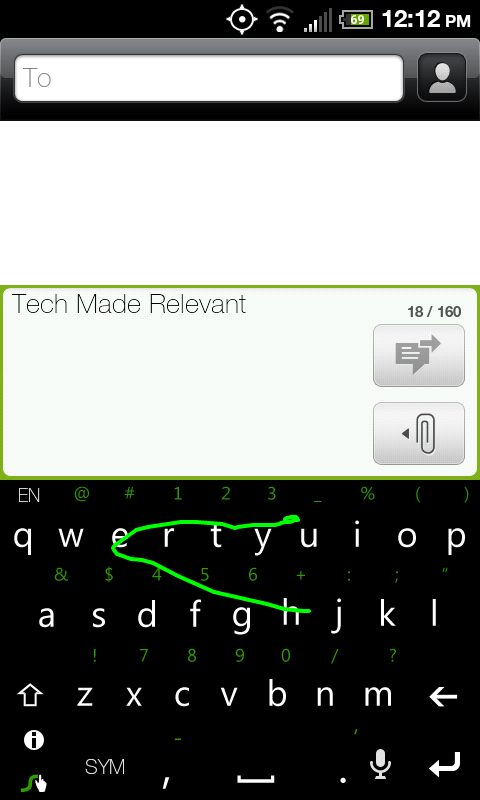
Swype is normally the first to come to mind when discussing different keyboards. The idea is simple: You want to type the word "Hello". Instead of tapping the H then the E then the L and so on, you press the H, keep pressing the screen, and drag your finger to the E and so on. While this takes a little getting used to, it makes for some of the fastest typing you can do. Literally. The current world record holder for texting (yes, there is such a thing) typed the sentence "The razor-toothed piranhas of the genera Serrasalmus and Pygocentrus are the most ferocious" on a Samsung Omnia II in just 35.54 seconds (I got 45 seconds, not too shabby! Feel free to post your results, because you know you want to try it). Swype's word prediction is really solid, and if it is not sure what you tried to say, it pops up a box with different possibilities. Any words you tap out are also saved to the dictionary for future use.

Swype only has 2 major problems. The first is that it is still in beta. As of this writing, it's open, so you don't have to wait to download it. In the past, they have closed it, meaning if you don't grab it now, you may have to wait later. Recently it has started coming preinstalled on many phones, but if yours doesn't have it, go here to sign up for it. All of the other keyboards discussed in this post can e found in the Market. The other issue is that words are annoying to delete from the dictionary. If you type anything incorrectly, it gets saved in the dictionary and may replace what your actually meant to Swype by default. To delete the typo for good, you have to double-tap on the word, press the little Info button on the keyboard, and click OK on the dialog. Its just a process that could be streamlined. Overall Swype is incredibly cool and very speedy. Definitely worth the download.

Note: Swype normally is gray with a blue line following your finger. My version is a hacked version, courtesy of myn's Warm TwoPointTwo ROM for the HTC EVO 4G.


SwiftKey
SwiftKey doesn't look or act very different from the stock keyboard. What's special about it is under the hood. SwiftKey features one of the most advanced word prediction algorithms to date. While it does feature the keyboard, the philosophy behind SwiftKey is to press as few buttons as possible. SwiftKey learns from what you type and not only does it's best to figure out what you are typing as you type it, but also what you might type next. For example, I want to type "I am going to go to the mall." That's 29 characters I would type. SwiftKey reduced those 29 key strokes to 13. And the more I type that sentence, the less buttons I'll actually press because it learns that after I say "going" a "to" is sure to follow.

SwiftKey doesn't offer that much customization, which is fine since the goal is to not type much anyway. Other than that it is a very solid keyboard choice. If you're interested, SwiftKey can even show you how much it has helped you in it's Usage Statistics. I used it for around a week or so and it saved me 1087 keystrokes, making me 12% more efficient! There's a free version on the Market if you want to give it a shot. The full version is on sale right now for $2.


8pen
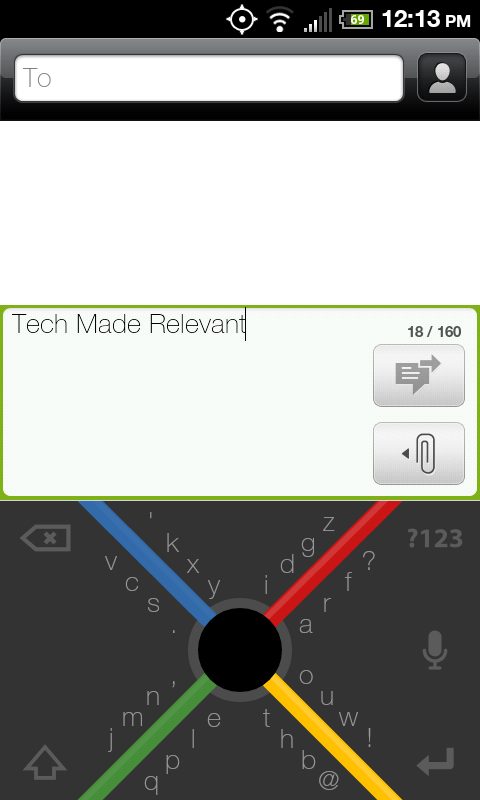
And now for something completely different. 8pen changes the concept of a keyboard as we know it. The developer's philosophy is that the QWERTY keyboard was made at a time when we had large typewriters. It made sense back then, but it doesn't now. A small touchscreen is much better for a single finger to use sweeping gestures than tapping small boxes. Enter 8pen, the weirdest keyboard I've ever laid eyes on. Let's say you want to type "Hello." You start at the big black circle in the middle of the X. The H is the second letter located down and to the right. You would slide your finger down then drag it counter-clockwise of the black dot. Passing the yellow line will select the T before the H. Sliding past the red line selects the H. Now drag your finger back to the black dot. You've now typed the H. The E is down and to the left, so you repeat the same process you did for the H, but you slide clockwise instead.

Seems convoluted, right? That's because you're not used to it. I spent a good week and a half using 8pen almost exclusively. There's a very steep learning curve because we've grown so used to the QWERTY keyboard. If you can get used to it, you do get quite speedy. Not quite as fast as Swype, but still pretty fast. Since describing it is difficult, check out the video below (courtesy of 8pen). The good news is that 8pen is now a totally free application, so your wallet won't hurt if you try it. Your brain might though.


Thumb Keyboard
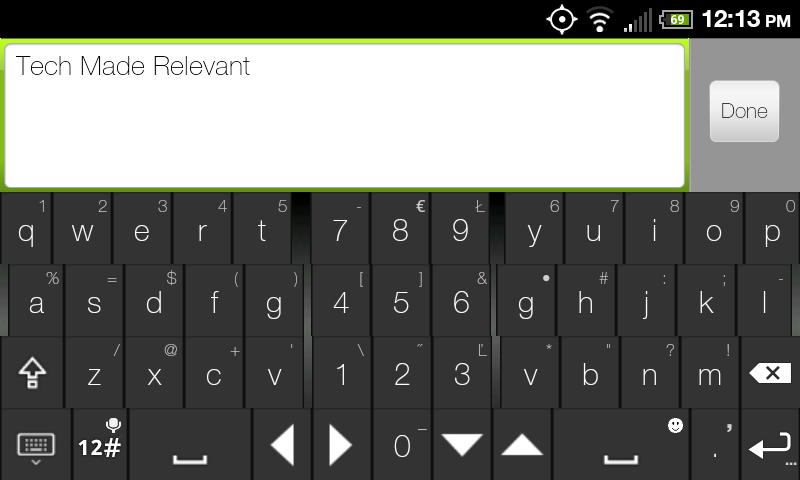
Finally, we have Thumb Keyboard. While you won't see anything here as odd as 8pen, it does still change the traditional QWERTY keyboard around a little. Thumb Keyboard takes a cue from many ergonomic keyboards by splitting the keyboard in half. But instead of angling it for our hands, Thumb Keyboard makes it easier for our most useful digits by making those middle keys easier to get to. Thumb's main draw is the amount of customization it provides. In addition to the different keyboard skins (emulating keyboards from Honeycomb, Gingerbread, even Windows Phone 7, as seen above), Thumb allows you to change between 6 different portrait keyboards and 5 landscape ones. You can even customize it so that you have different styles for the different orientations (something I've long wanted). Some of the different layouts have been specifically designed for different tablets as well. There are keyboards that are optimized for both 7 and 10 inch tablets, something I have been disappointed in manufacturers for not doing themselves. Devices that size just weren't made for thumb typing, and they aren't quite big enough for most people to type as they would on a computer. Cutting the keyboard in half really helps even the most opposable of thumbs by eliminating the painful stretch to the pesky Gs and Hs. This app is perfect for phones, Xooms, and Galaxy Tabs alike. You'll find it on the Market right now for just $1.87.

How To Start Using Them
So you downloaded an alternative keyboard, but when you go to type something, the stock keyboard still pops up. You have to do a few things first. If you click on the keyboard in your app list, it will usually take you through the setup up. In case it doesn't, go to your Settings (Menu > Settings from the homescreen) and click on Language and Keyboard. You should see your newly installed keyboard on the list there. Make sure the box next to it is checked to activate it. You can also access the keyboard settings from this menu. Now go to where you want to type, and bring up the keyboard. Press and hold on the space you're wanting to type in and a pop up menu will show up, one of the options being "Input Method". Clicking on that will give you a list of all the activated keyboards you have. Click on the one you want, and start typing!

Tuesday, March 15, 2011

Netflix's Android App Leaks, No Video Yet


Android has been behind iOS and WP7 in getting two of the most requested apps: Skype video calling and Netflix Instant Play. One of those may be fixed very soon.

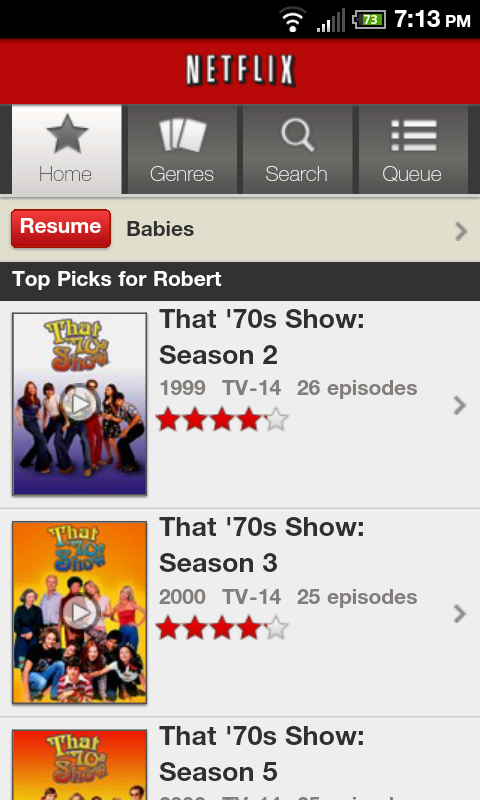
Phandroid has just posted a link (Click Here) to a leaked version of the Netflix app for Android. Unfortunately, video streaming isn't working yet, trying to do so produces an error and logs you out. You can manage your queue though and search through titles.

The good news is that this leak means that we can expect Netflix to officially release the app soon, with Instant Play in tow. We'll keep you posted, and hit the link below to download the .APK for yourself (before It's taken down)!

Review: Internet Explorer 9


Microsoft has just taken the beta tag off of Internet Explorer 9. Last September, they launched the IE9 beta, touting all kinds of enhancements and changes and challenging people to give IE another chance. I took that challenge last year and used it exclusively for a week. After doing a little visit with it again, I can yet again shock myself by saying this: It doesn't suck.

Internet Explorer has long been a joke of a web browser. Using it comes natural to most people, seeing as it's the browser your computer most likely comes with. Despite a lot of people jumping ship to Firefox and Chrome, IE has maintained its dominant position of King of the Browser Marketshare. The browser has been plagued with so much lag, obnoxious toolbars, and security holes that it became a sign of computer illiteracy to still use it, especially an older version like IE6.

IE9 changes all of that. I spent a full week using IE9 exclusively. I'm a huge fan of Google's browser, Chrome. It reaches amazing speed (like Opera) without losing out on any functionality (unlike Opera). I had expected a large drop of that speed I became so accustomed to, and I was pleasantly surprised to not experience much of a performance decline. It is overall slower than Chrome, yes, but it's leaps and bounds faster than IE8 was. A lot of stuff was done under the hood to help with this, but mostly not having 8 million toolbars helped speed things up. While Chrome still wins in most (if not all) browser benchmarking tests, IE9 holds its own still. I tested how long each browser took to load up this site. The results:

Chrome: 2.4 seconds
IE9: 3.4 seconds

The look of IE9 is really where the biggest changes are. In many ways, they took a lot of cues from Chrome's minimalistic look. Gone are the days of managing a bunch of toolbars. They are all pretty much gone. All you're left with is a single line of navigational buttons, the URL bar, and your tabs. This allows for a lot more content to be displayed at any given time. The URL bar can also directly start searches for you using whichever service you like (though Bing is of course the default).

One added feature I love about IE9 is pinning sites to Windows 7s taskbar. While Chrome can do this as well, IE9's pinned websites allow for additional functionality. For example, if you pin Twitter to the taskbar, you can right-click it and options to jump right to your mentions, direct messages, and search are available, not just "Open Window".

Internet Explorer 9 is definitely worth the download, especially if you're still using the old version of it. While it won't make me leave Chrome for good, it definitely is a nice alternative. You can download it yourself now here. Let me know in the comments what you think about it!

Monday, March 14, 2011

AT&T to Start Capping Broadband Data Usage


In the past year, AT&T has become a pioneer in the arena of the internet. What's important to know is that the word "pioneer" isn't always a good thing. Some months ago, AT&T stopped offering unlimited data plans on its smartphones. This move, while apparently only affecting 2% of their customer base, was not warmly received by both customers and the media alike. And they are at it again.

Yesterday, AT&T announced its plan to start limiting the amount of usage that its home internet subscribers will be alloted. Starting May 2nd, DSL customers will be given a 150GB cap and high speed U-Verse customers will be given 250GB. AT&T again insists that it will only affect 2% of their subscribers, who account for 20% of their network traffic at times. Overages will run $10 per 50GB.

250GB sounds like a lot though, right? Netflix says their services use 1GB per hour, meaning you'll be able to watch around 100 movies, assuming you do nothing else. This applies to other HD (or near HD) services like Hulu as well. Each minute of Skype you use runs just under a megabyte per minute, which isn't a ton but can add up quickly. Streaming music will run around 72 megabytes an hour. World of Warcraft will use around 120 mb/h. All of this, in addition to your Facebook and email usage can add up quickly.

The main issue that most people have is that caps like this stifle innovation. It will be difficult to implement new technologies that will no doubt use significant amounts of data. People will worry about going over their limits (even if it's not much of an issue for them) for fear of overages, regardless of how enticing of an application it might be. It's not a good precedent to set, but unfortunately it seems to be a trend that we'll most likely be seeing with many other operators.

Thursday, March 10, 2011

Editorial: The Only Tablet Game Worth Playing is the Waiting Game


On Friday, the iPad 2 will launch. As soon as I get my hands on one, I'll do a quick personal review, but the professional ones are in and they are overall quite positive. I've been thinking about the iPad, my Nook Color, and the tablet space in general a lot lately and the conclusion I've drawn is this: Now is the absolute worse time to buy a tablet.

The iPad 2 will do doubt sell like crazy like the original iPad did, since it largely just added a few things that the original should have had anyway. I've had a few people ask me my thoughts on it and my answer remains the same from the first one: As far as the tablet market goes, it is easily the most polished and finished product, but it still lacks a lot of basic functionality that would truly make it a hard to beat product. When asked about the host of Android tablet, both past, present, and upcoming, I say this: They pack some functionality that the iPad lacks (Flash support) and gives you a lot more choice in hardware, but the user experience is nowhere near that of their Apple competitor. The final thought on tablets is this:

There are two important things to consider. The first is that the tablet space is a new thing on the consumer market. While tablet PCs have existed for many years, they all ran some version of Windows that was even less optimized for a touch interface than Windows 7 is, which is to say not very optimized at all. Tablets aren't really necessary. They don't hit the full capacity of a laptop to do work and browse the full web, and they don't really offer the portability that you get with a smartphone. Like the smartphone market, you are going to see some very rapid expansion, if not at a faster pace than smartphones. While that iPad 2 looks nice now, you may find yourself getting some serious tablet-envy in a few months when a few more Android tablets, the BlackBerry PlayBook, and the HP Touchpad drop.

We've seen other Android tablets before fall short before, but Honeycomb will be some big competition once it reaches maturity and fixes a few weird UI issues. BlackBerry's offering will be great for people who want a smaller screen (7 inches instead of the 9-10 inch range), and there is a big possibility that it might run Android apps. The HP Touchpad will pack WebOS, which has a much better chance of succeeding under HP's direction than it did Palm's. Another huge plus the Touchpad will have is something HP recently announced, that ALL computers it ships in the future will run both Windows AND a WebOS variant. This may allow for a very awesome ecosystem of having all the same functionality and information across all of your gadgets.

The other big problem I see with the tablet market as a whole right now is one that Apple got right again: Contracts. Carriers want you to get a contract with their service, ensuring that you have that tablet with them for 2 years. While smartphones get better over time too, they aren't evolving as fast as what the tablet market will most likely do. And if the tablet space is just a fad without much staying power, you'll be locked in regardless. If you're going to buy a tablet and want 3G/4G connectivity, fine. But it is definitely not a good idea to get a contract along with it when you can get the same plan without.

The tablet landscape is a very new one, one that has yet to truly find its legs. While the iPad 2 might be the best there is yet, that doesn't mean it's a good buy quite yet. Hopefully the iPad 3 will pack a lot more PC-like functionality, and hopefully the rest of the manufacturers will realize that they're getting their butts kicked and show us how a tablet is supposed to be done. Regardless of how it all ends, paying $500+ for something that will be much more obsolete than your laptop will in a year or two's time might not be the best unless you have the money to burn on a new one.